Confused by Workplace Software
Stuck trying to figure out workplace software?
Paste a screenshot into Data Levee and get a clear explanation of what you’re looking at and what to do next.
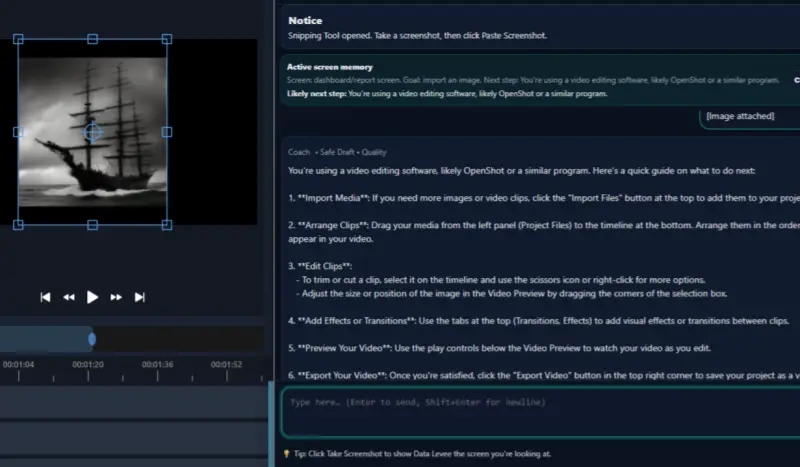
Starting a new job often means learning unfamiliar software. Even experienced employees sometimes find themselves staring at a screen full of buttons, menus, and data with no clear idea what they are supposed to do next.
If workplace software feels confusing, you are not alone. Many people are expected to learn new systems quickly with very little training.
The good news is that there are practical ways to make sense of unfamiliar tools and become comfortable using them.
If you’re staring at a screen and don’t understand what you’re looking at, start here:
👉 Help Understanding Confusing Software Screens at Work
Start by Identifying What the Software Is Used For
Every workplace system exists to support a specific task or workflow.
Before trying to understand every feature, focus on the main purpose of the software.
Ask yourself questions like:
- What job does this system help people perform?
- What type of information does it store or track?
- What tasks are employees expected to complete with it?
Understanding the purpose of the software helps everything else start to make sense.
Focus on the Task You Need to Complete
One mistake many people make when learning new software is trying to understand the entire system at once.
Most workplace tools contain far more features than any one person needs to use.
Instead, concentrate on the specific task you are responsible for completing. Once you know how to perform that task, the rest of the system becomes easier to understand over time.
Break the Screen Into Smaller Sections
Complex software screens can feel overwhelming when viewed all at once.
A helpful strategy is to break the interface into smaller sections such as:
- navigation menus
- information panels
- input fields
- action buttons
Looking at each section individually makes it easier to understand how the system works.
Pay Attention to Labels and Field Names
Many workplace systems include descriptive labels that explain what each field or section represents.
Examples might include:
- status
- owner
- priority
- comments
- due date
These labels often reveal what type of information the software is tracking and how tasks move through the system.
Look for Patterns in the Interface
Most modern software tools follow similar design patterns.
For example:
- navigation menus often appear along the left side
- dashboards display key information at the top
- action buttons appear near the forms they control
Recognizing these patterns can make unfamiliar software feel more predictable.
Ask Focused Questions When Necessary
Even when training is limited, asking clear and specific questions can help you move forward.
Instead of asking a broad question like:
“Can someone explain this system?”
Try asking something more specific:
- “What does this field mean?”
- “Is this the correct screen for updating this task?”
- “What happens after I submit this?”
Focused questions are easier for coworkers to answer and often lead to faster solutions.
Getting Comfortable With New Software Takes Time
Learning workplace tools rarely happens instantly. Even experienced professionals need time to become comfortable with unfamiliar systems.
The key is to focus on the tasks you need to complete and gradually build familiarity with the software as you use it.
If you are trying to get comfortable with new tools more quickly, you may also find this guide helpful:
How to Learn New Software at Work (Without Feeling Lost)
A Tool That Can Help
If you frequently encounter confusing software screens at work, Data Levee is designed to help you understand unfamiliar tools, interpret screens, and draft clear professional updates while you work.
You can learn more about Data Levee on the homepage.
Related guides
Beginner’s Guide to Understanding Workplace Software
How to Learn New Software at Work (Without Feeling Lost)