How to Understand a Software Screen
Stuck on a confusing software screen at work?
Paste a screenshot into Data Levee and get a clear explanation of what you’re looking at and what to do next.
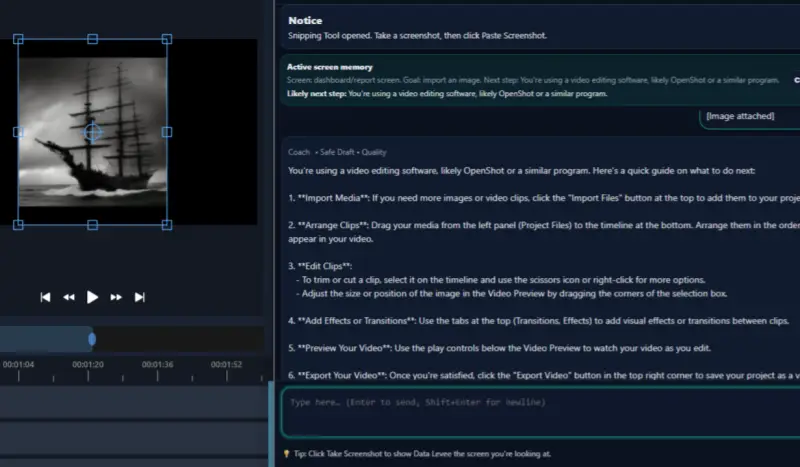
Many workers open a program at work and immediately feel unsure about what they are looking at.
A dashboard appears with charts and numbers.
A task system displays tickets with unfamiliar fields.
A screen opens with menus, filters, buttons, and labels that assume you already understand the system.
When this happens, people often try to figure out how to understand a software screen so they can move forward with their task.
Modern workplaces rely heavily on digital tools. While these systems help organize work and track progress, they are not always easy for new users to understand.
Related Guides
If this topic sounds familiar, these guides may also help:
- How to Learn New Software at Work (Without Feeling Lost
- How to Figure Out What to Click Next in Unfamiliar Software
- Beginner’s Guide to Understanding Workplace Software
- What Does This Screen Mean at Work
- Data Levee
Why Software Screens Can Be Difficult
Many workplace programs are designed for people who have already used the system for a long time.
Because of this, screens often include:
- unfamiliar terminology
- internal abbreviations
- dashboards with unexplained numbers
- multiple tabs and navigation menus
- information that assumes prior knowledge
For someone who is new to the system, this can make the screen feel overwhelming.
The problem is not that the worker lacks ability. The software simply assumes context that the worker may not have yet.
What a Software Screen Is Usually Trying to Do
Most workplace software screens exist for one of three reasons.
Display information
Dashboards and reports show progress, performance, or data.
Assign or track work
Ticket systems and project management tools show tasks that need to be completed.
Allow updates
Some screens exist so workers can change statuses, submit updates, or move tasks forward.
Understanding the purpose of the screen often makes the rest of the system much easier to understand.
A Simple Way to Break Down a Software Screen
If a screen looks confusing, try approaching it step by step.
Identify the main purpose
Ask yourself what the system is trying to show or track.
Look for key elements
Most screens highlight the most important information through headings, labels, or sections.
Find the expected action
Some screens only show information, while others expect you to update a field, change a status, or respond to a task.
Breaking the screen down like this can make even complicated systems easier to navigate.
If you want a broader strategy for learning unfamiliar systems, read How to Learn New Software at Work (Without Feeling Lost).
How Data Levee Helps Workers Understand Software
Data Levee was designed to help workers interpret confusing workplace software.
Instead of guessing what a dashboard or system screen means, workers can use Data Levee to better understand what they are seeing and what the next step should be.
This can help employees:
- understand unfamiliar software screens
- interpret dashboards and reports
- figure out what tasks are asking them to do
- write clearer updates when reporting work progress
Once a screen makes sense, the rest of the system usually becomes much easier to use.
Learning Work Software Takes Time
Many people feel frustrated when a program does not make sense immediately.
But most workplace systems take time to learn.
If you have ever opened a tool at work and thought:
“I have no idea what this screen means.”
You are not alone.
Learning how to interpret software screens is a normal part of modern work, and the right explanation can make the process much easier.
If you want a broader introduction to how workplace systems work, start with the Beginner’s Guide to Understanding Workplace Software.
Related Guides
If this topic sounds familiar, these guides may also help:
- How to Learn New Software at Work (Without Feeling Lost
- Beginner’s Guide to Understanding Workplace Software
- What Does This Screen Mean at Work